Settings
Extension and Type Matching Rules
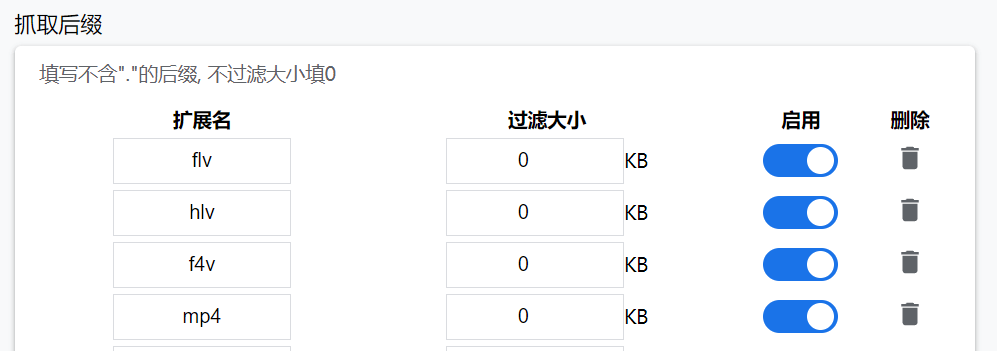
The browser judges the file when it is received.
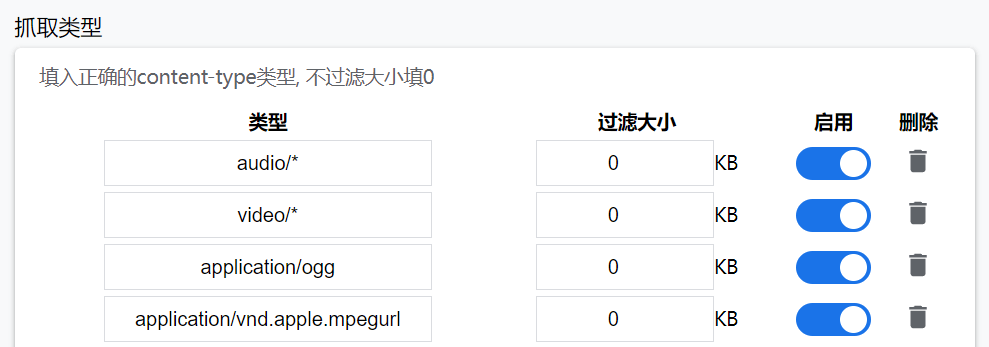
The capture type, also known as MIME extension type. Some websites do not provide the correct file extension, so the MIME extension type is needed to judge the file. The subtype supports the wildcard *.
Relational operators are allowed, supporting > >= < <= = != as well as range expressions. Capacity units support B KB MB GB
For example:
>= 200KB resources greater than or equal to 200KB
< 1GB resources less than 1GB
!=500KB resources not equal to 500KB
500-1024 MB resources in the range of 500MB to 1GB
Regex Matching
If some resources have no extension or MIME type, you can use regex to match URLs, or use regex matching to filter and block resources.
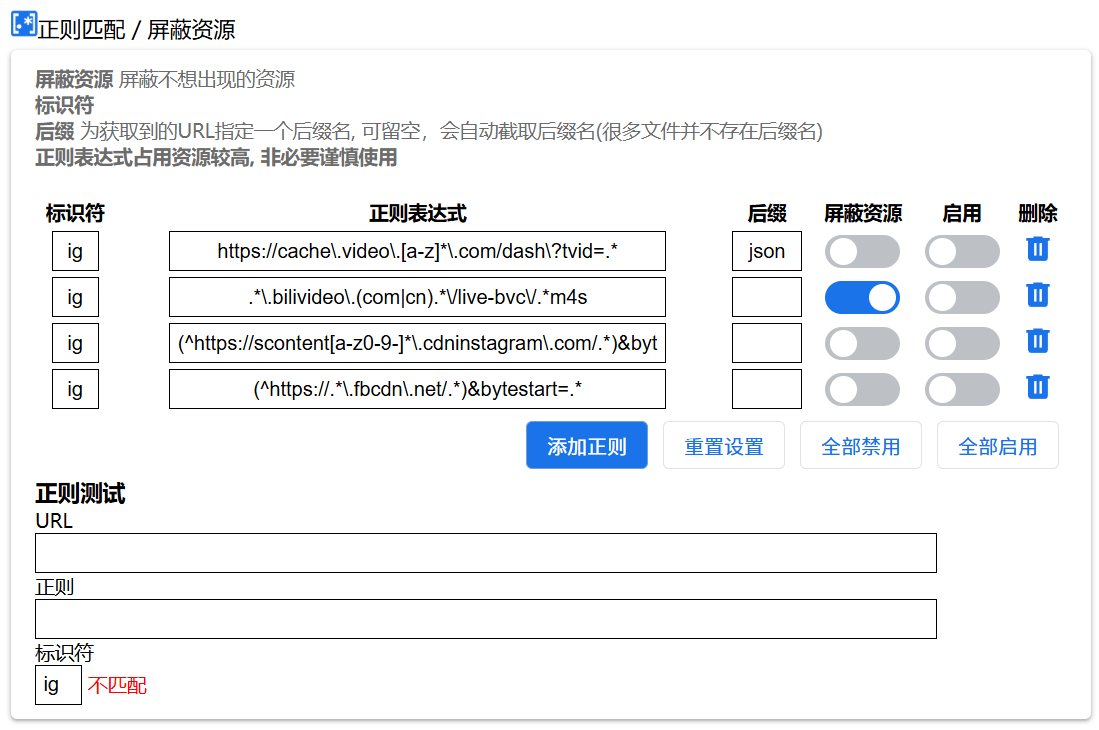
Extension Resources matched by regex cannot know the resource type and extension, so a posterior extension needs to be specified. If left empty, it will try to extract the extension from the URL. Since many URLs have no extension, the type may ultimately be unknown, and the corresponding parser entry or play icon cannot be displayed on the popup page.
Block Resources You can block certain resources you don't want to capture.
INFO
Regex matching is inefficient. Minimize the use of regex to avoid excessive resource usage.
Block URLs
If you don't need the extension on certain websites, you can set URLs with wildcard support, such as https://x.com/*
Enable the Set as Whitelist option to change the list to a whitelist. The extension will only work normally on URLs in the whitelist.
Copy Options
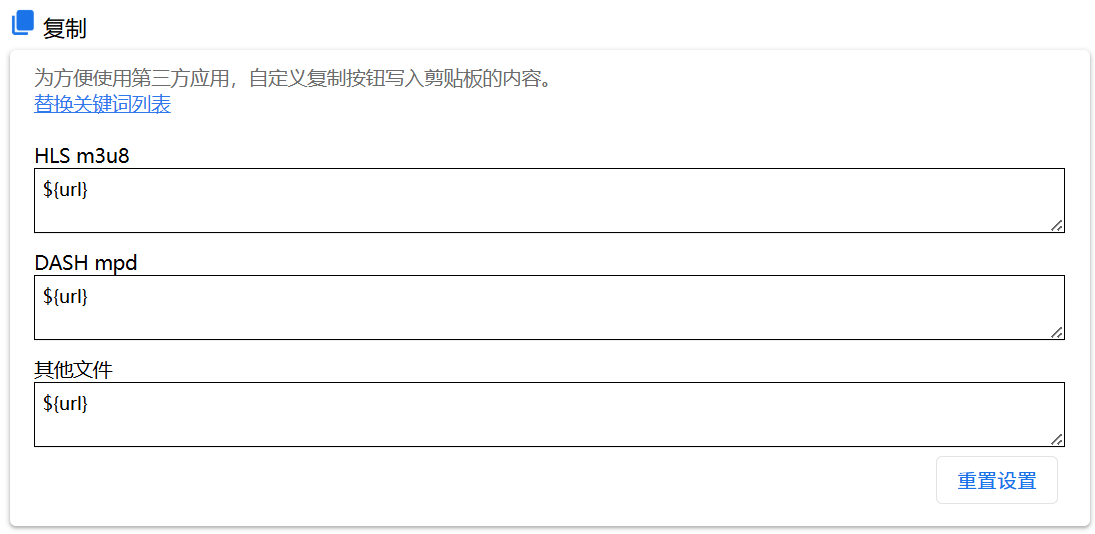
Click the copy button on the popup page. The copied content can be customized for your convenience to use with third-party tools directly.
m3u8dl Custom Protocol
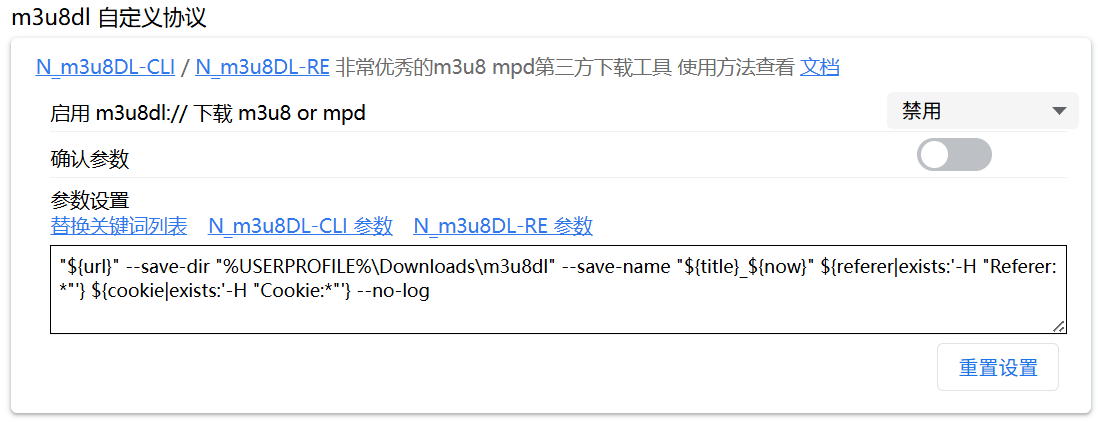
For detailed usage, see the m3u8dl chapter
Tag System / Replace Keywords
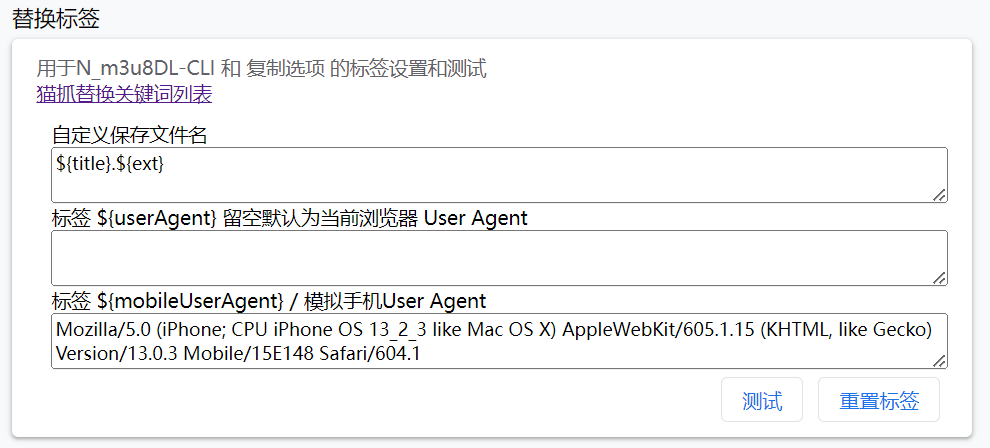
Used for keyword replacement in Copy, Data Send, URL Protocol m3u8dl, Invoke Program, Replace Tags, etc. Tags are case-sensitive.
For details, see the Tag System / Replace Keywords chapter
Custom Save Filename
You need to enable the Use Custom Filename to Save File option in Other Settings. You can create directories, e.g., ${title}/${fullFileName} will finally be stored in a folder created with the title.
Invoke Local Program
For detailed usage, see the Invoke Local Program chapter
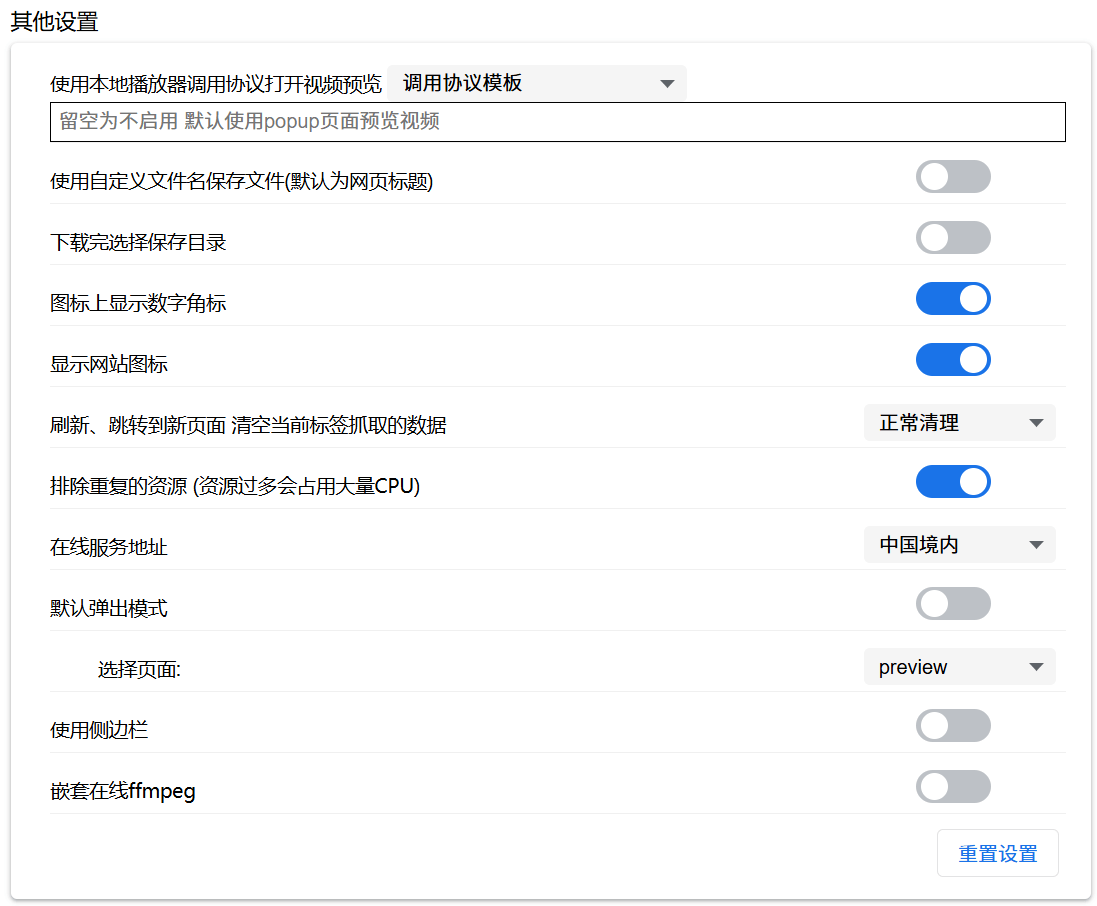
Other Settings
Never Enable Cat Catch Downloader
Cat Catch has a built-in simple downloader that can download files with the original request headers. When the browser's built-in downloader fails, it will automatically call the Cat Catch downloader to re-download the file to ensure success. If you use a third-party download tool, it may cause conflicts. You can enable this option to prevent the Cat Catch downloader from being called.
Use Local Player Protocol to Open Video Preview
Some local players support invocation protocols, such as PotPlayer. Select PotPlayer in the Protocol Template. Clicking the play button on the popup page will directly invoke the local player for preview. Mobile users are advised to use the System Share mode.
Clear Current Tab's Captured Data on Refresh or Navigate to New Page
Select the captured resource clearing mode:
- No Clearing: Never clear data under any circumstances until the user closes the current page's tab.
- Normal Clearing: When the user actively refreshes the page or clicks to navigate to a new page, the currently captured data will be cleared.
- More Frequent: Based on normal clearing, it is more sensitive. For example, switching to a new video will also trigger clearing.
Some websites refresh the page multiple times by themselves, causing the captured data to be cleared. When encountering websites where resources cannot be sniffed, please first try changing the clearing mode to No Clearing.
Nested Online ffmpeg
When using online ffmpeg, data transmission may fail due to various complex reasons, and the online ffmpeg does not receive the data. You can enable this option to use the nested online ffmpeg to solve this.
Send Data
Click the send button on the popup page to customize sending data to a third-party address. Ensure the request body is in JSON format.
${action} is a special tag representing different data types. If it is captured data, it is replaced with the catch string. If it is key data, it is replaced with the addKey string.
If ${action} is catch, ${data} is the file object converted to JSON format content.
If ${action} is addKey, ${data} is the key base64 string.
Example: {"action": "${action}", "data": ${data}, "tabId": "${tabId}"}
// {"action": "${action}", "data": ${data}, "tabId": "${tabId}"}
{
    action: "catch",
    data: {
        name: "filename",
        url: "resource address",
        size: "resource size"
        requestHeaders: {
            referer: "may also not exist",
            origin: "may also not exist",
            cookie: "may also not exist"
        }
        ...: "others"
    },
    tabId: "tab ID of the data source"
}

// JSON receives a suspected key
{
    action: "addKey",
    data: "base64 data",
    tabId: "tab ID of the data source"
}